
Activities and registers are easy to manage using Aspire.
This article will teach you how to:
- Schedule sessions for an existing activity
- Record registers for a session
- Add students to a register
- Remove students from a register
For each of the above, the first two steps will be to:
1. Select the "Clubs" tab
2. Select the club for which you want to look at from the drop-down list, and click "Record Registers"
Then follow the specific instructions below for the action you want to take.
Scheduling a session
On the right hand side of the screen, click "Add Session"
Fill in the fields shown below and click "Submit"
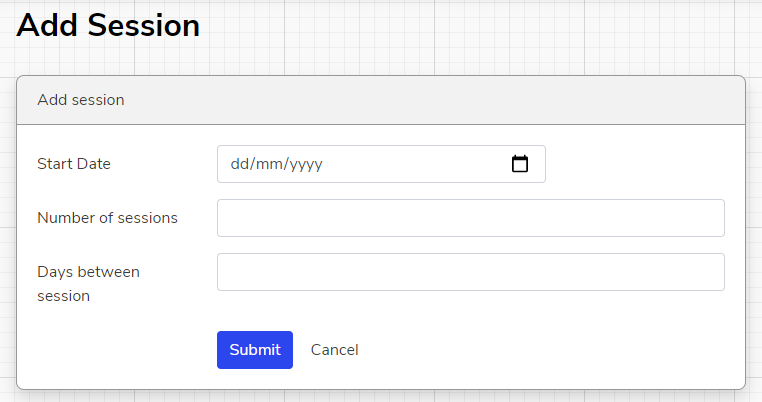
NB - "Days between sessions" refers to calendar days, and not weekdays only. If, for example, an activity should take place every Monday, you should put 7 here.
Recording Registers
Under the date of the session you want to record a register for, select the students whose attendance you want to log. Leave the others blank.
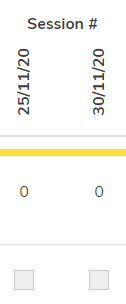
Attendance will be logged immediately - no need to do anything else!
Adding Students to a Register
NB - students who sign up to a club when creating their plan will be added to the register automatically.
Scroll to the bottom of the page and select either the specific student you want to add using the "Add Student" drop down, or a group of students using the "Add a group of students" drop down.

Selecting a student from the drop down will add them to the register immediately. No need to do anything else!
Removing Students From a Register
Find the student you want to remove, and under "Actions", click "Remove from register"

The student will be removed from the register immediately. No need to do anything else!
NB - you can view all students removed from the register by checking the box above - and can add them back by clicking ‘actions’, in case you’ve made a mistake or a student changes their mind.
We hope you've found this guide useful. If you have any issues with using Aspire, please don't hesitate to contact our support team.
Comments
1 comment
It is very difficult to log attendance as when you scroll to the right you cannot see the student's name on the left, and when you scroll to the bottom if you have a large register you cannot view the date at the top.
Please sign in to leave a comment.