
The Aspirations tracker is designed to make it easy for you to stay on top of your Aspirations programme, by providing a single place where you can keep track of key programme metrics and record and review meeting notes and actions.
This article will give you a brief overview of the contents of the Aspirations tracker, as well as guide of what to update at each stage of the Aspirations Programme.
NB - there is a reference table at the end of this article with an index of the stages listed above, which tabs to look at during that stage, and our recommended actions.
Contents Overview
The Aspirations tracker contains 4 tabs:
Meeting Notes & Actions
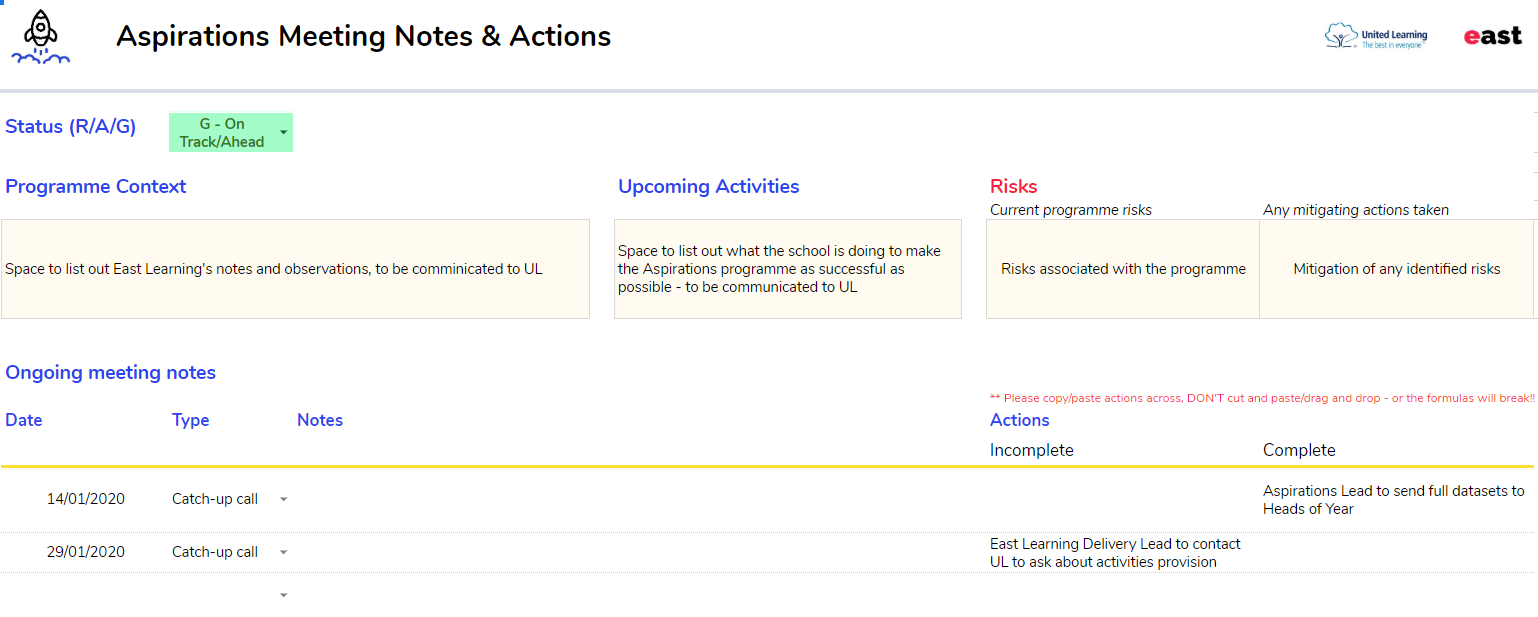
This tab is used to keep track of notes and actions from meetings with the East team, and to hold to account the owners of those actions. If you are part of a MAT, this tab will be used to log key positive observations and support requests to be communicated to the central MAT body.
Implementation Progress
This tab contains a checklist and description of all of the preparatory activities which should be completed before your organisation begins your Aspirations programme, and which need to be done again at the start of each school year. The East team will support you with this.
Programme Ratings
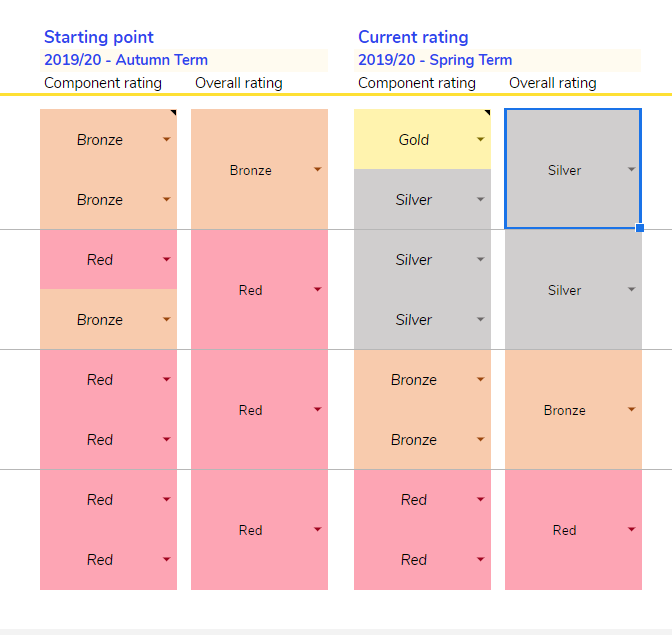
This tab is used to track your progress (Red/Bronze/Silver/Gold) in the 4 key programme elements:
- Understand
- Plan
- Act
- Review
It also contains a reminder of what each of those elements consists of and the milestones required to achieve each status.
Key School Info
This final tab is used to store key information about your organisation, e.g. programme type, key personnel, and which school years will be included in the programme. This will only need to be filled in once, and updated whenever something changes, e.g. a member of staff changes role, or you decide to include more year groups in the programme.
What To Do When Using Your Aspirations Tracker During The Programme
Before Your Programme Begins
Before starting your Aspirations programme, you should complete the following:
- In Key School Info, complete, as much as possible, the fields shown below:

- In Implementation Progress, use the checklist (shown below) to help you get set up - and update the status as you go:
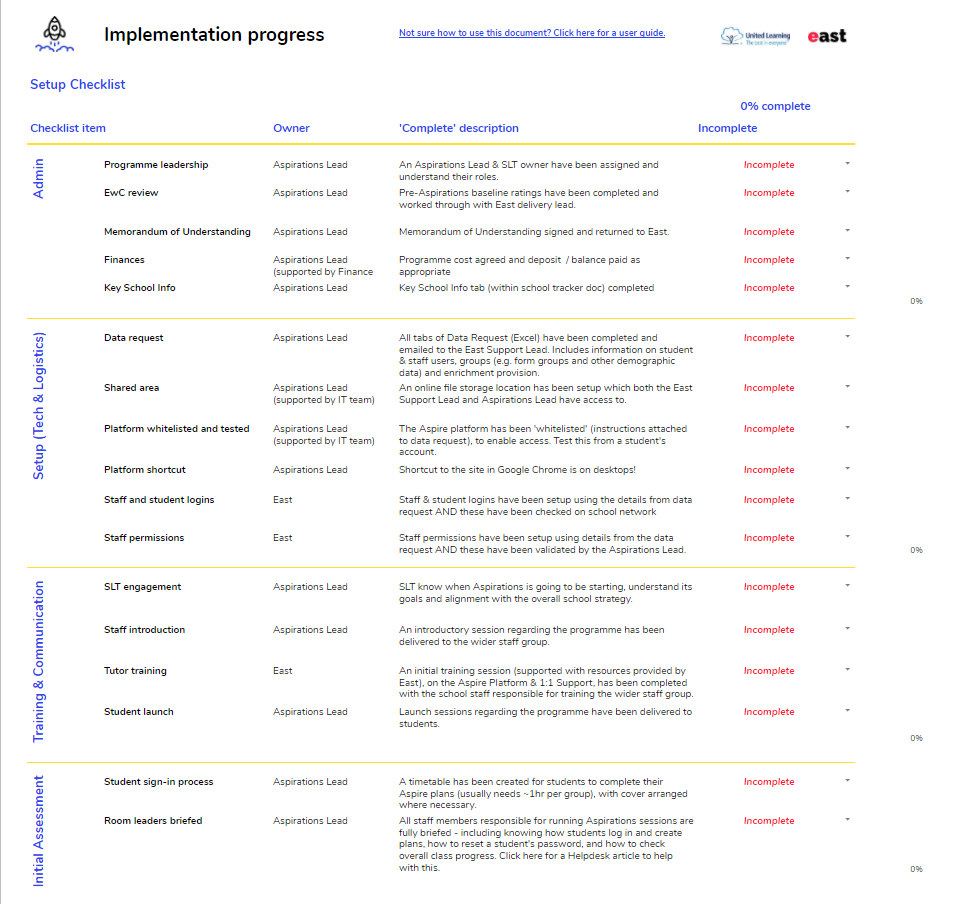
NB2 - Marking the activities in this list as "complete" will update your setup completion % in the central tracker, which is regularly reported to heads and RDs - so be sure to keep it up to date!
As You Go Along
In addition to the specific, time-bound actions outlined above, you should also complete the following following any relevant meeting/activity:
- In Meeting Notes & Actions, record in the corresponding fields the Date and Type of meeting, and any:
- Upcoming Activities
- Risks/Mitigating Actions
- Notes
- Actions
- If the activity was a termly milestone, mark the milestone as complete in Implementation Progress
Before Updates with the East Team
Before each update with East, we recommend that you:
- In Programme Ratings, review the sections shown below and reflect on how you think the programme is progressing against each of the categories, as we'll review and update these during the meeting.
- In Meeting Notes & Actions, review the fields shown below to refresh your memory on what has been reported to the central MAT body (if applicable) and which actions from previous meetings have been completed/are currently outstanding
You may also want to review the Key School Info tab to ensure that the details are all still correct
INDEX
Below is an index of all of the stages and actions listed above, for ease of reference.
| Stage | Key Tab | Actions |
| Before the programme begins | Key School Info | Fill in details as much as possible |
| Implementation Progress |
Complete and check off actions listed |
|
| As you go along | Meeting Notes & Actions | Record notes & actions Check that they're completed |
| Before each update with the East team | Meeting Notes & Actions | Review notes from previous meetings |
| Programme Ratings |
Review starting point vs current status |
|
| Key School Info | Review, ensure details still correct |
We hope you've found this guide useful. If you have any issues with using Aspire, please don't hesitate to contact our support team.
Comments
0 comments
Please sign in to leave a comment.