
This article is about editing user details in Aspire, and is intended for users with Coordinator permissions.
This article will cover:
- Updating student names/emails
- Updating student forms
- Updating staff names/emails
- Updating staff permissions
- Deleting users from Aspire
The following topics are covered elsewhere:
NB - Most data within the platform are refreshed overnight, so changes may not show up immediately in tables or reports. If this is an issue, please contact our support team.
Editing Student Details
1. Go to Admin -> Students
2. Find the student whose details you want to amend, and click the pencil icon under "Actions"

3. Fill in the fields shown below and click "Save Changes"

Editing Staff Details
1. Go to Admin -> Staff
2. Find the staff member whose details you want to amend, and under "Actions", click the pencil icon
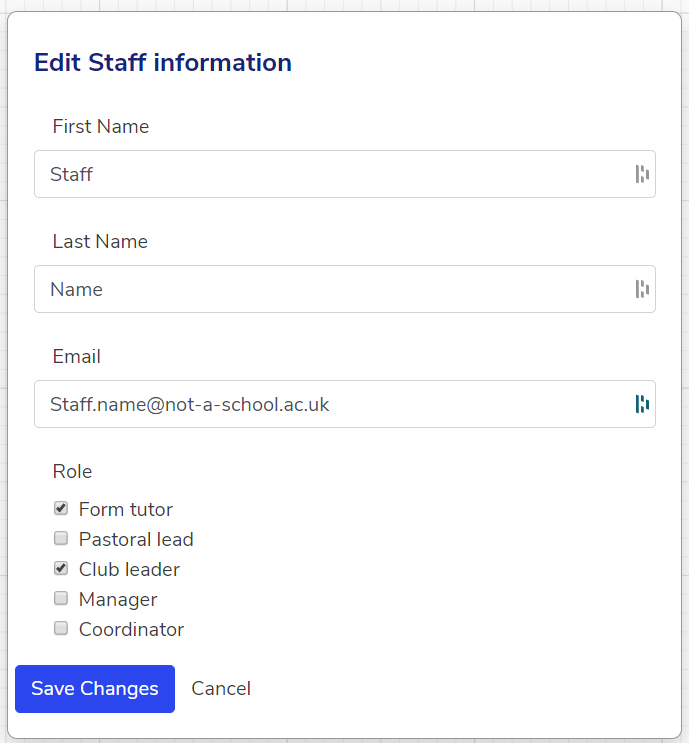
3. Fill out the details shown below, checking the boxes for the user roles you want that staff member to have, then click "Save changes"
Deleting Users from Aspire
Coordinators can delete both staff and students from Aspire. You can do this by going to Admin -> Staff or Admin -> Students (as appropriate) and searching for the user you want to delete, then clicking the "dustbin" icon under "Actions".

We hope you've found this guide useful. If you have any issues with using Aspire, please don't hesitate to contact our support team.
Comments
0 comments
Please sign in to leave a comment.