
Conversation logs in Aspire help you to quickly and easily capture key points from conversations you have with students, allowing you and other staff members to keep track of their needs and support them accordingly.
This article is about logging conversations. For guidance on viewing your 1-1 progress as a Tutor, see "Logging & Reviewing 1-1s".
Any member of staff can log a conversation with any student. However, only staff with "Tutor" access for a particular student can view their full conversation histories.
Conversation notes are optional, but notes for some areas, such as careers, are encouraged in order to help you more easily fulfil Gatsby obligations.
To log a conversation with a student:
1. In the top-right of the screen (on any page), click Log Conversation
2. Select the student you want to log a conversation with, and click "Log Conversation"
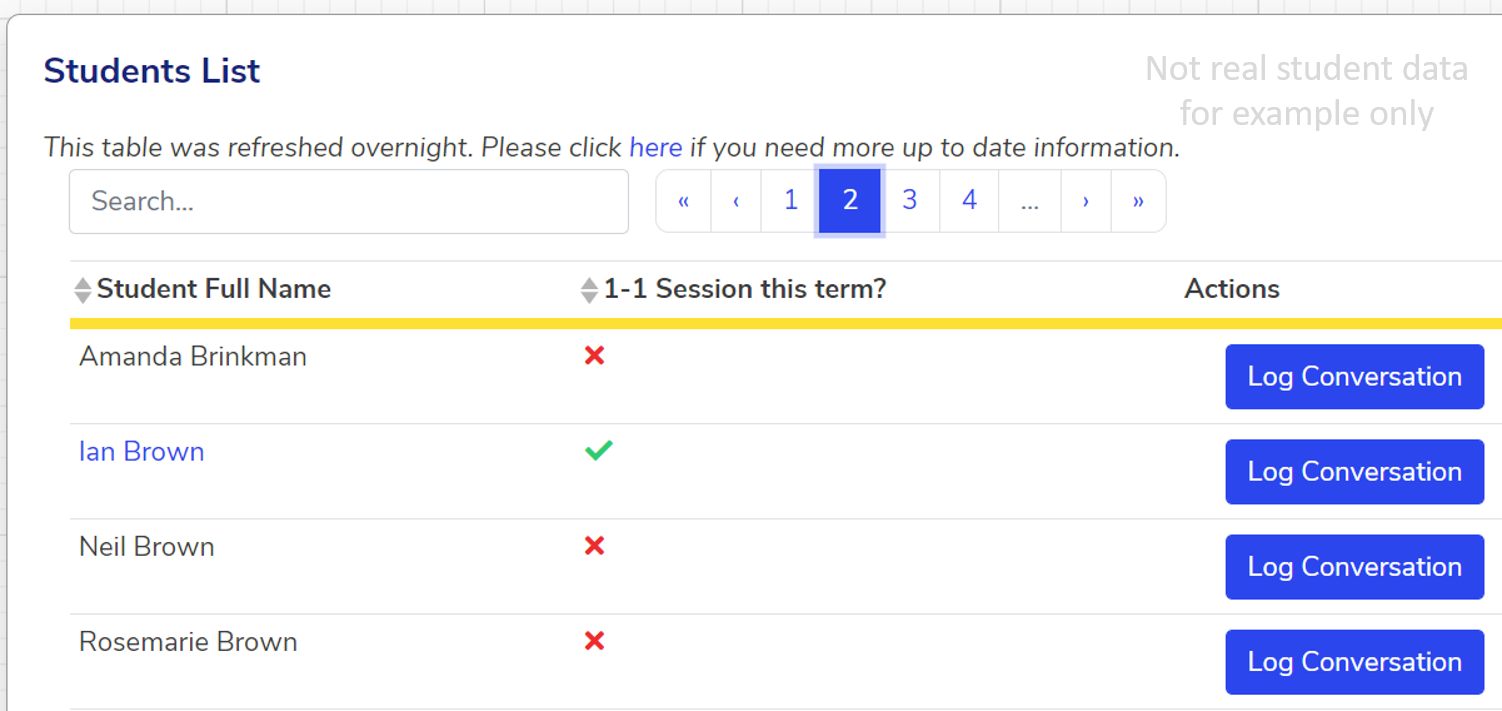
3. Fill out each of the sections under "Log new conversation"
NB - if this is a termly 1-1 with a member of your tutor group, be sure to click "yes" under "Was this their termly 1-1 development chat?"
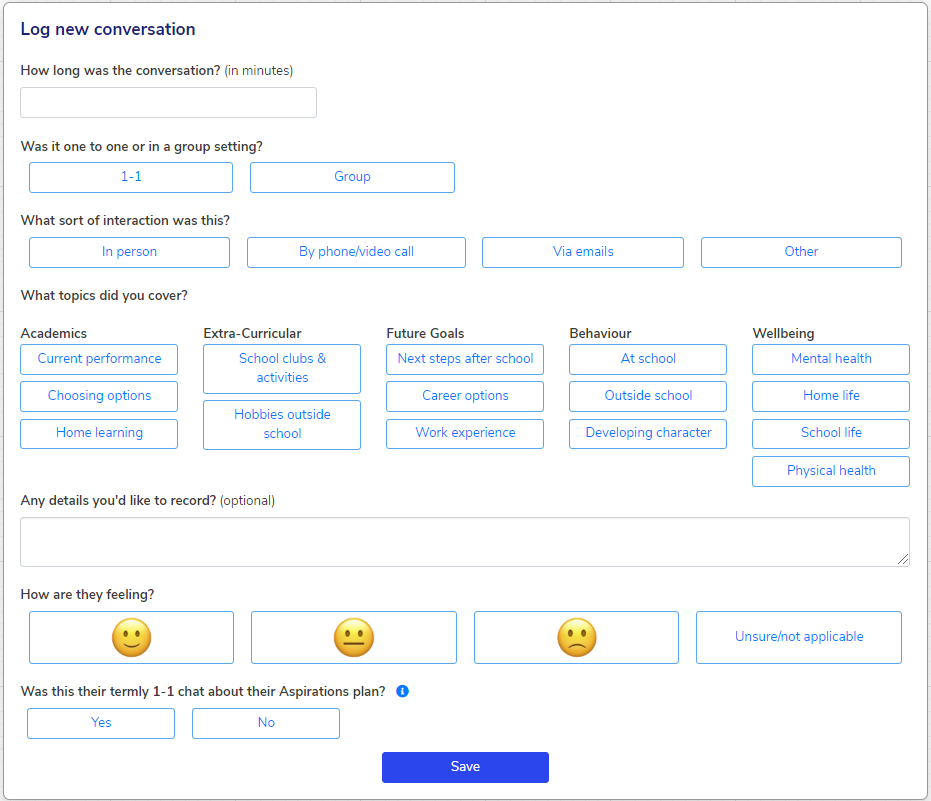
4. Click "Save"
5. (If this was a termly 1-1) - Many tutors find it useful to update Evaluations following 1-1s. To find out more about how to complete evaluations, give this article a read.
NB! You can also log conversations with students for whom you are a Tutor from the "Students" tab, by hovering over "Actions" (screenshot below).
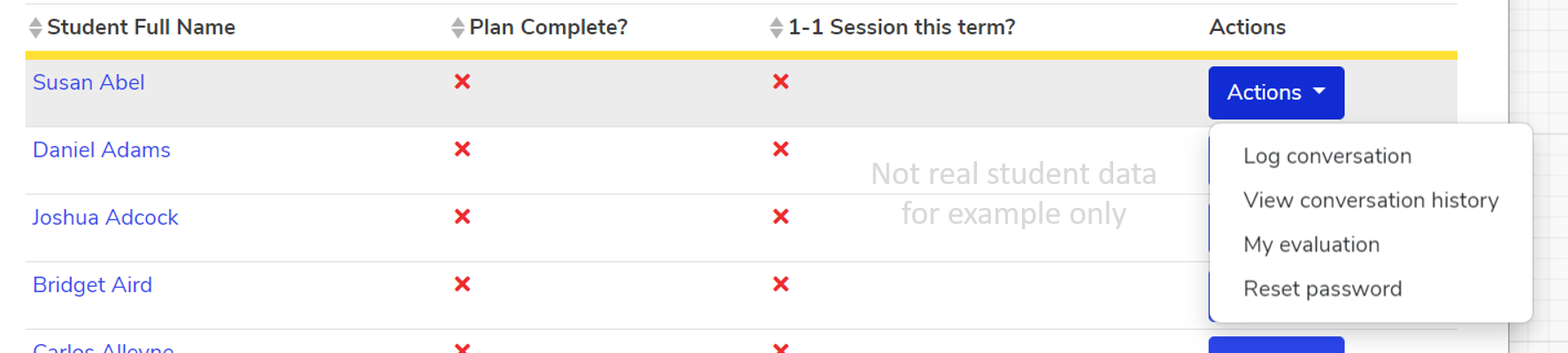
We hope you've found this guide useful. If you have any issues with using Aspire, please don't hesitate to contact our support team.
Comments
0 comments
Please sign in to leave a comment.