
This article is about resetting student passwords. You can reset your own password by clicking "Forgot my password" in the Sign In page.
Students are able to reset their own passwords via the Sign In page by clicking "Forgot my password". However, teachers can also do this remotely for students in instances where, for example, the student can't access their email account.
Note that you can only reset passwords of students for whom you are a Tutor.
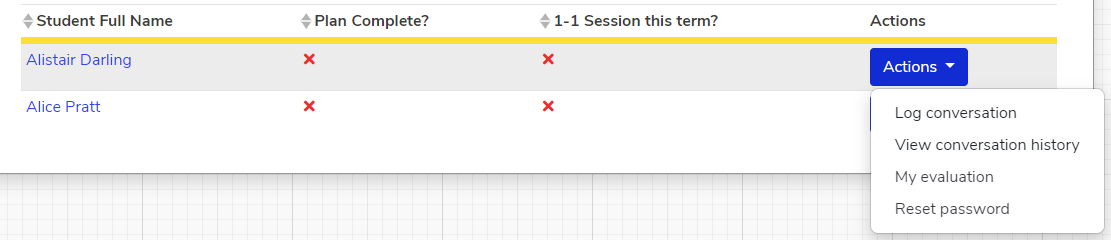
To reset a student's password:
1. Go to Students

2. Find the student whose password you want to reset
3. Go to Actions -> Reset Password
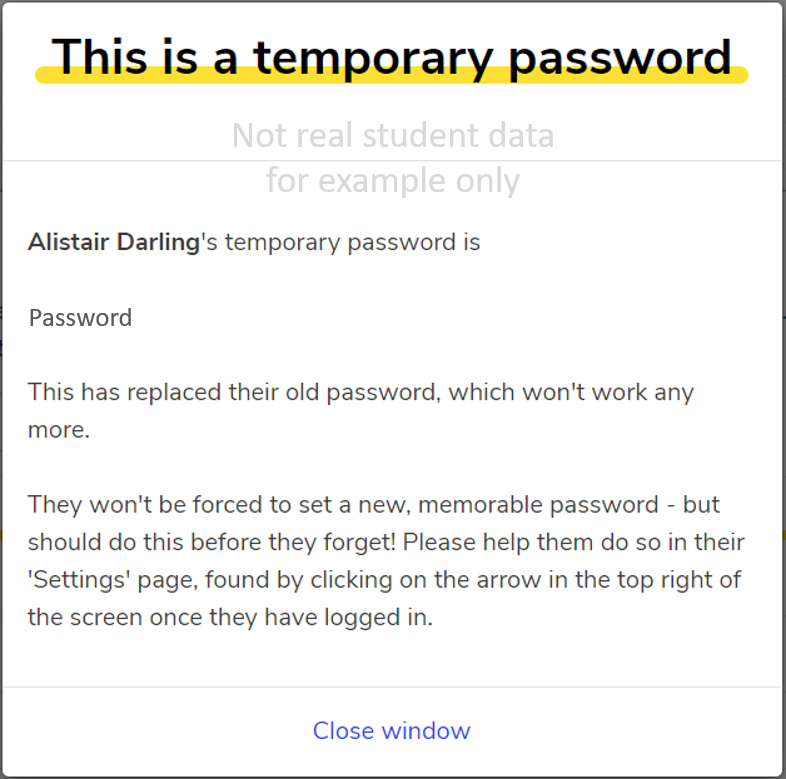
4. A popup will then appear with a new password. Please ensure that the student changes this to a secure, memorable password as soon as possible!
NB - once the password is reset, the old password will no longer work, even if the student remembers it later on.
We hope you've found this guide useful. If you have any issues with using Aspire, please don't hesitate to contact our support team.
Comments
0 comments
Please sign in to leave a comment.