

The Trends tab is used to see at a glance how your organisation is progressing through the Aspirations programme.
The trends tab shows aggregated data from students for whom you are a tutor in Aspire.
There are four pages in the trends tab, as shown in the menu below.

Plan & Quiz Progress
This page shows completion rates for both plans and quizzes, as well as how many students are in each stage of the Aspire programme.
You can view a specific slice of the data by choosing from the drop-down next to "Select group" or "Select term" at the top of the page.
Note the the data is refreshed overnight; if you need more up-to-date data, there is an option under the page title to refresh it manually.

Clicking on the numbers above each stage will open up a list of the students at that stage, as shown below.
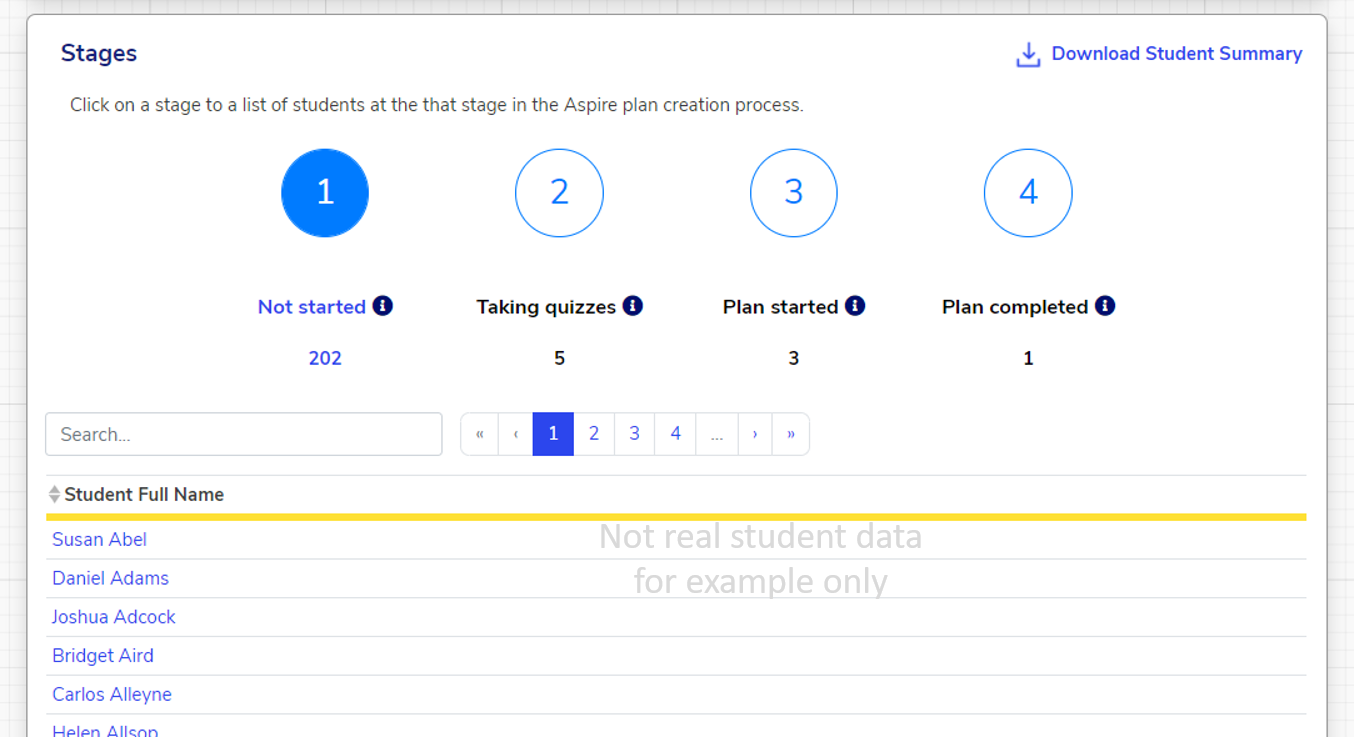
You can use the "Download Student Summary" button in the top right of the "Stages" section to download an Excel file which shows the following for each student:
- Name
- Key Stage
- Year
- Form
- Whether or not they've completed each quiz for the selected term
- How many objectives they have set for the selected term
- How many activities they have in their plan for the selected term
- Any wellbeing alerts from the selected term
- Whether they have a completed plan for the selected term
- Whether an evaluation has been completed for the selected term
- Whether they have received a 1-1 during the selected term
Student Priorities
This page allows you to see which focus areas have been prioritised by the most students. "Prioritisation" means that they have been selected as one of their top 5 focus areas for the term.
The first chart on this page shows the top 10 most popular options (shown below).
Scrolling down will show the most popular options in the following categories:
Skill
Characteristic
Career option
Post-school destination
Knowledge

Clicking "Download All" in the top right will download an Excel file showing all of the areas which have been prioritised by each student, as well as any related objectives which those students have set, and any related activities they have signed up to.
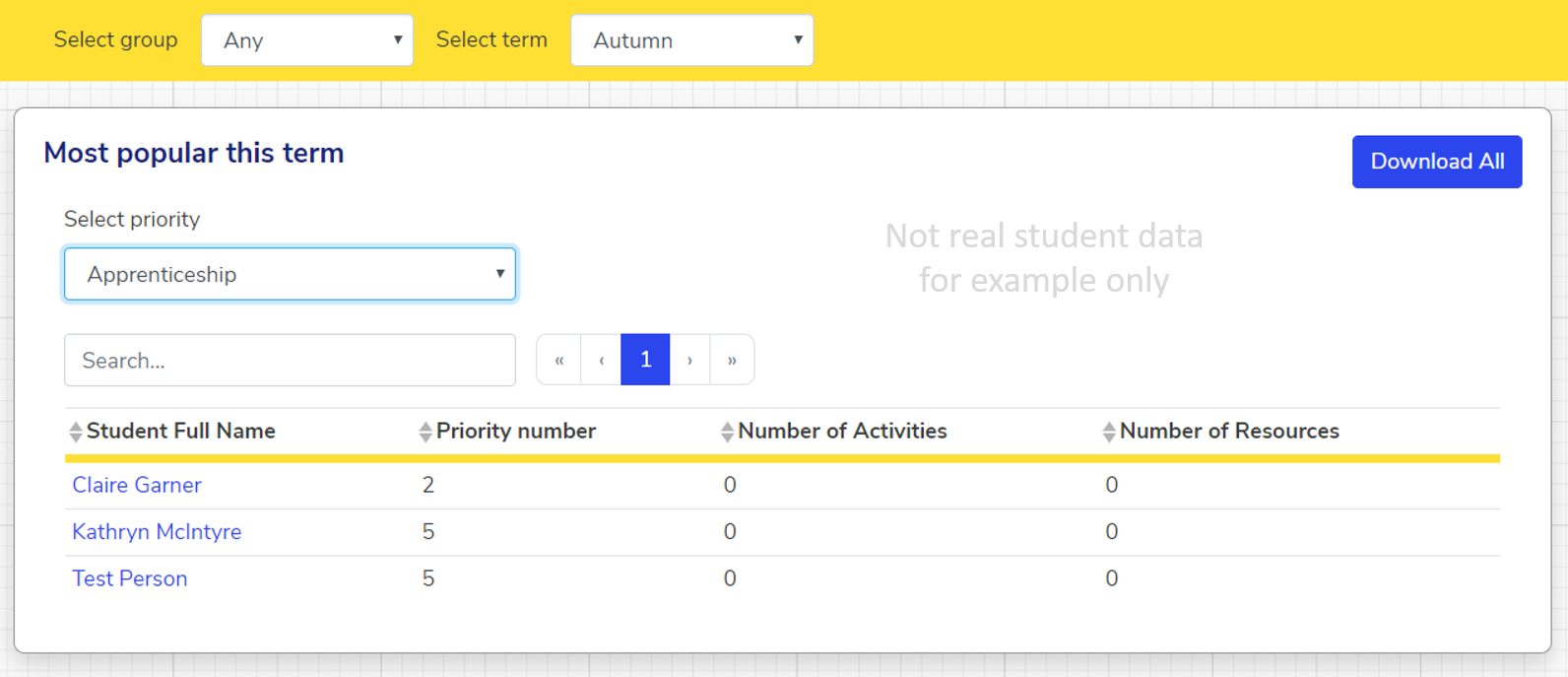
Clicking "View student list" will open the following page, on which you can view which students have chosen each focus area as a priority. Clicking on a student's name will take you to that student's profile.
My Evaluations
This page shows aggregated evaluation data, allowing you to easily:
- Track your progress in completing evaluations
- Ascertain trends in the evaluation data
For more information on why evaluations are important and how to complete them, check out this article.
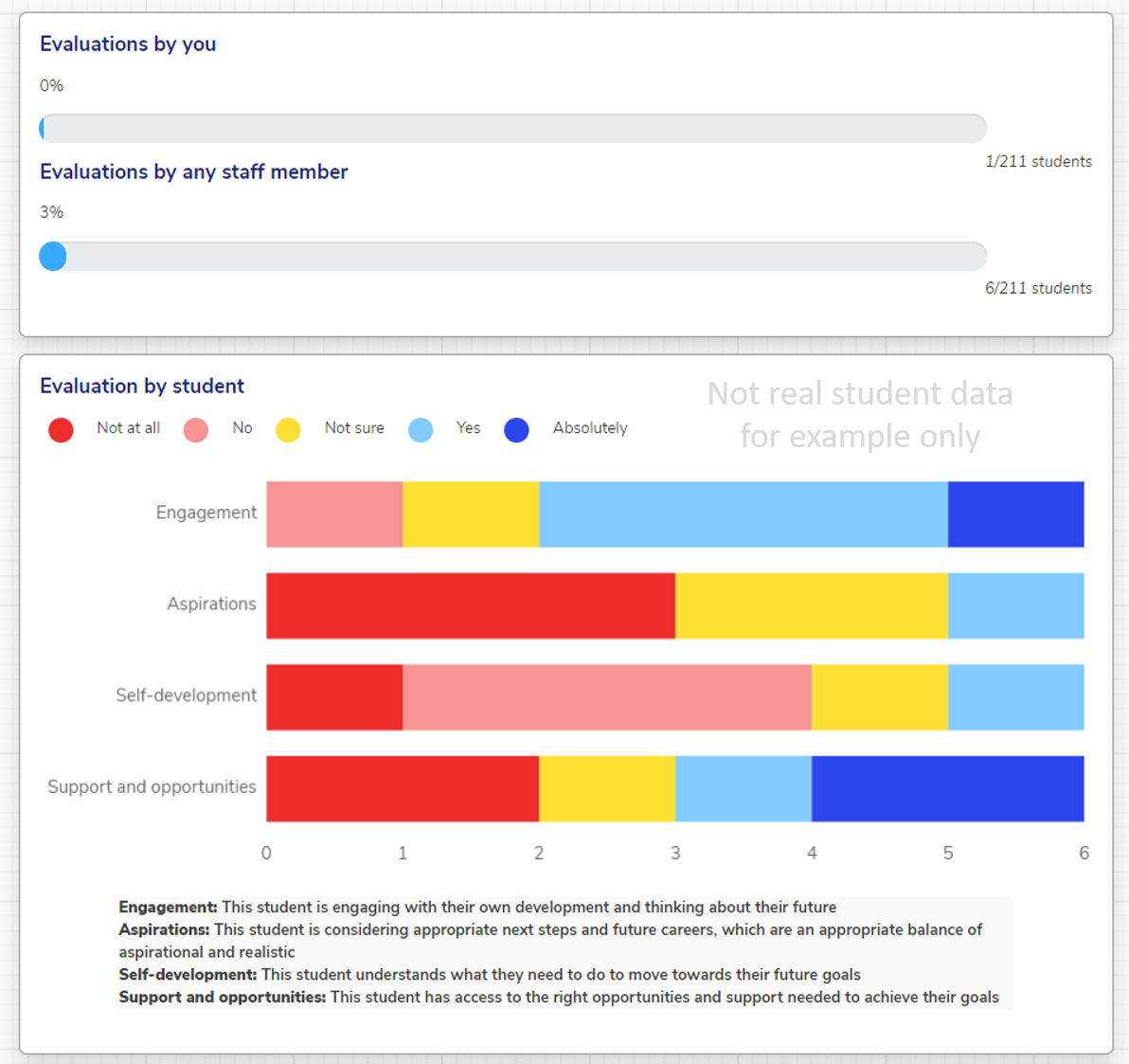
At the top of the "My Evaluations" page are two charts, the first of which shows the proportion of completed evaluations for the selected group and term.
The second shows the average evaluation scores for all students in the selected group and term.
Scrolling down this page gives an overview of all of the individual student evaluations for the selected group and term, as shown below.
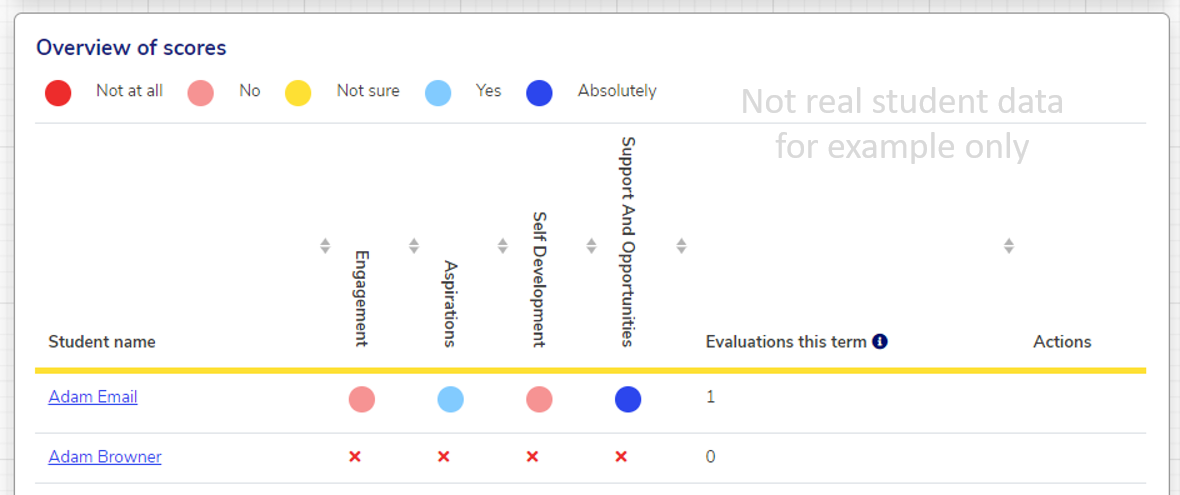
You can use the "Edit" button on the right to record an evaluation for the selected student.
As with before, clicking on a student's name will take you to that student's profile.
1-1 Sessions
This page provides an overview of 1-1 progress in your organisation, allowing you to easily check:
- Overall 1-1 progress
- Who hasn't yet received a 1-1
- Who has received a 1-1
For more information on why 1-1s are important and how to record them, have a look at our articles for teaching staff on Viewing 1-1 Progress and Logging 1-1s.
The top section of this page contains a pie chart showing the proportion of students who have received 1-1s so far for the selected group and term. Hovering over the pie chart shows the number of students represented in each section.

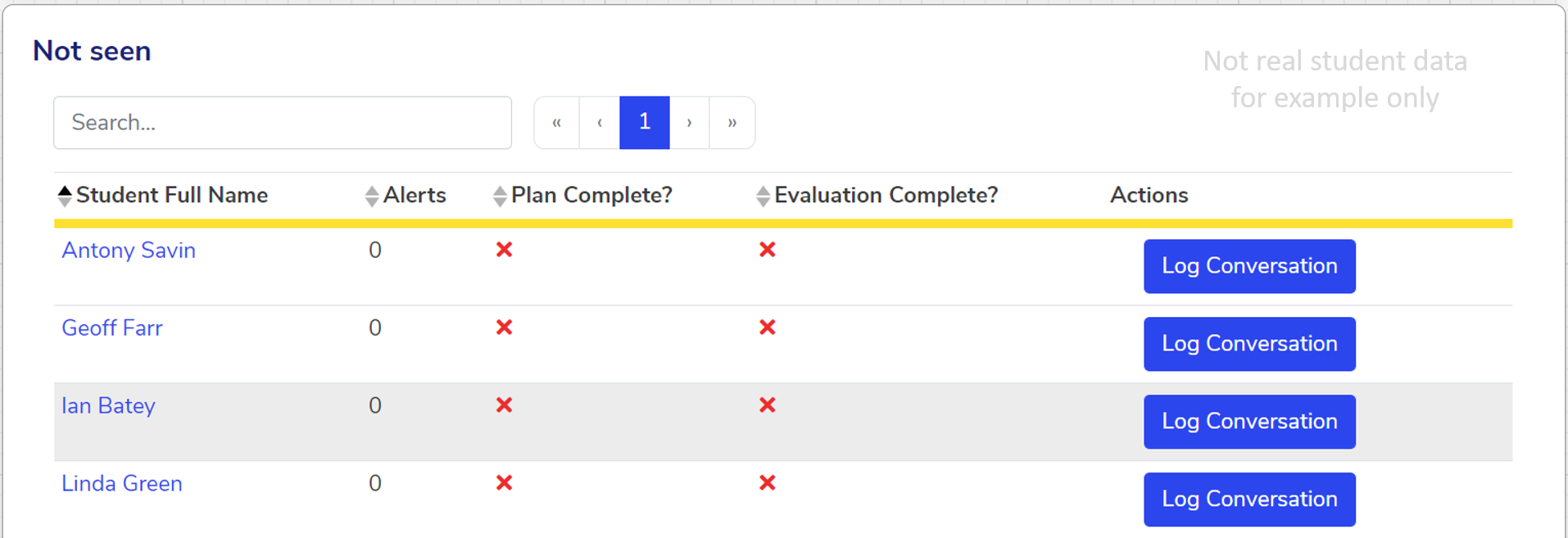
Clicking "Show All" in the middle and bottom sections respectively shows:
- The list of students who haven't yet received 1-1s in the selected group and term
- The list of students who have received 1-1s in the selected group and term
Clicking on the headers in these sections sorts the responses by that column.
We hope you've found this guide useful. If you have any issues with using Aspire, please don't hesitate to contact our support team.
Comments
0 comments
Please sign in to leave a comment.